

A walkthrough of the FlexOffers publisher signup, from account creation to site verification.
Rui Correia Posted Last reviewed
FlexOffers is one of the larger affiliate networks, with 12,000+ advertisers across retail, finance, travel and SaaS. If you already run programmes on Awin or Impact, adding FlexOffers as a publisher widens your advertiser catalogue without much overhead.
This guide walks through the FlexOffers publisher signup end-to-end: account creation, company details, traffic sources, and the phone/website verification that trips most people up.
Before you start
Have these to hand so you can finish in one sitting:
- A business email and company address.
- Your website URL and admin access (you'll need to add a meta tag or upload a file).
- A phone number that can receive SMS for verification.
- A clear idea of your traffic sources — website, app, email list, social, or media buying.
Step 1: Create your account
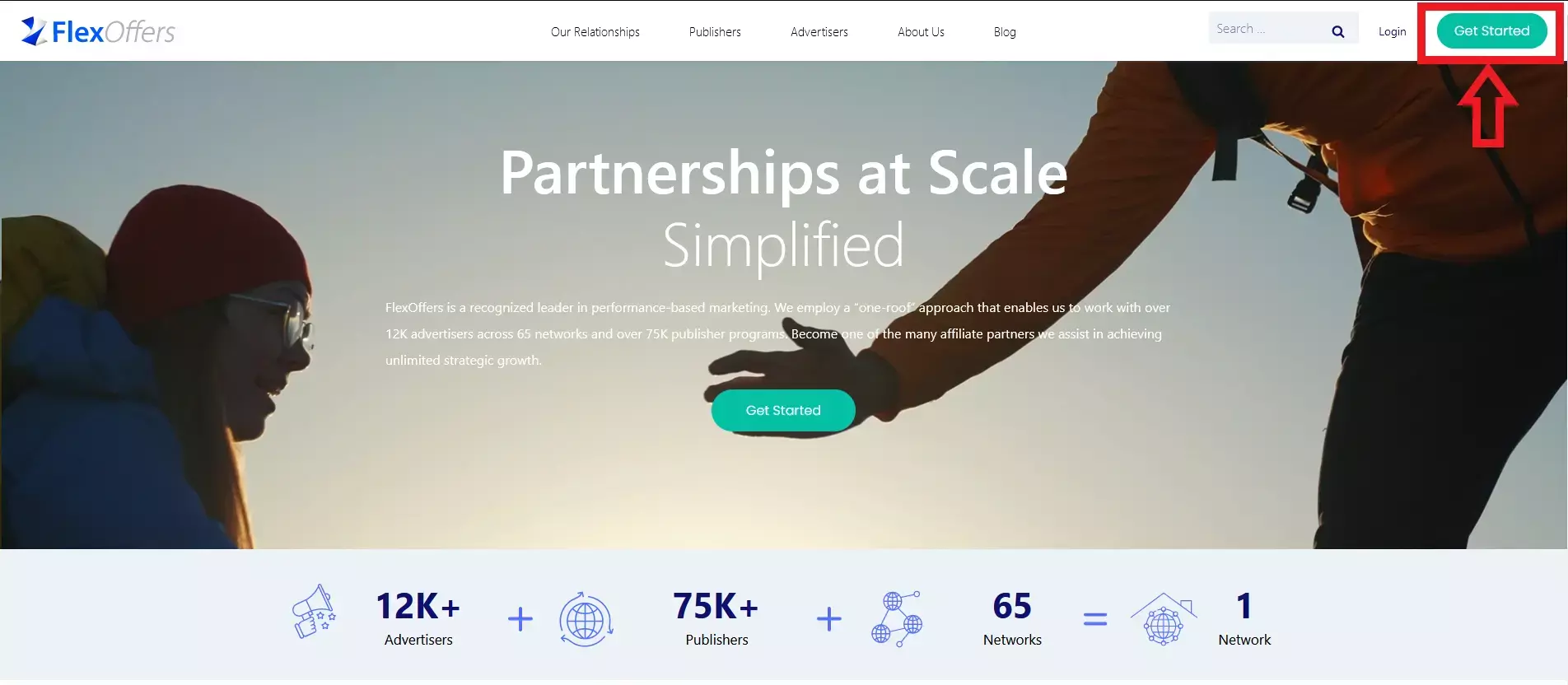
Go to FlexOffers and hit Get Started in the top right, then pick Publisher/Affiliate (the other option is Advertiser/Merchant).
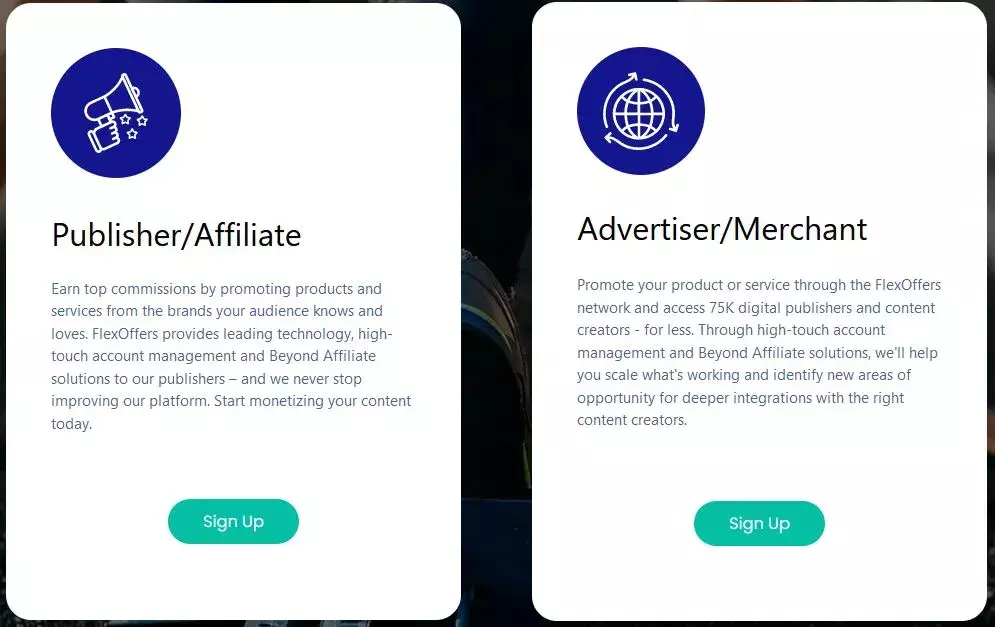
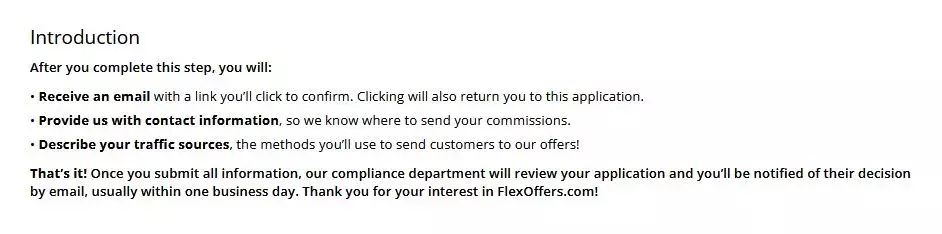
You'll see a short preview of the steps ahead, then the account form.
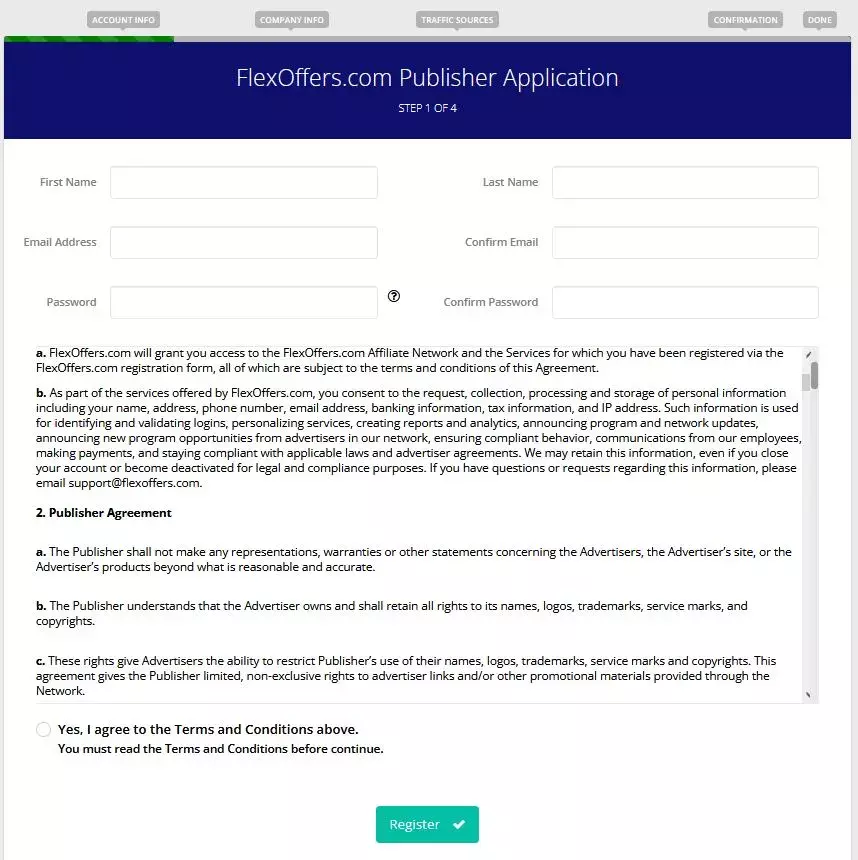
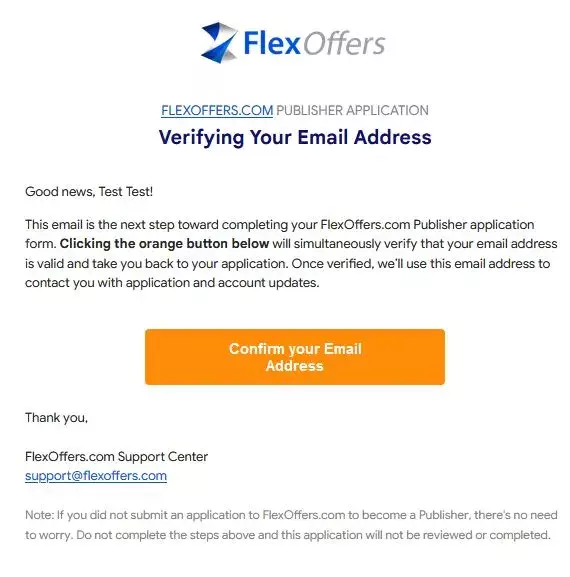
Fill in your personal details, set a password, and accept the terms. A verification email lands in your inbox — confirm it before moving on.
Step 2: Company information
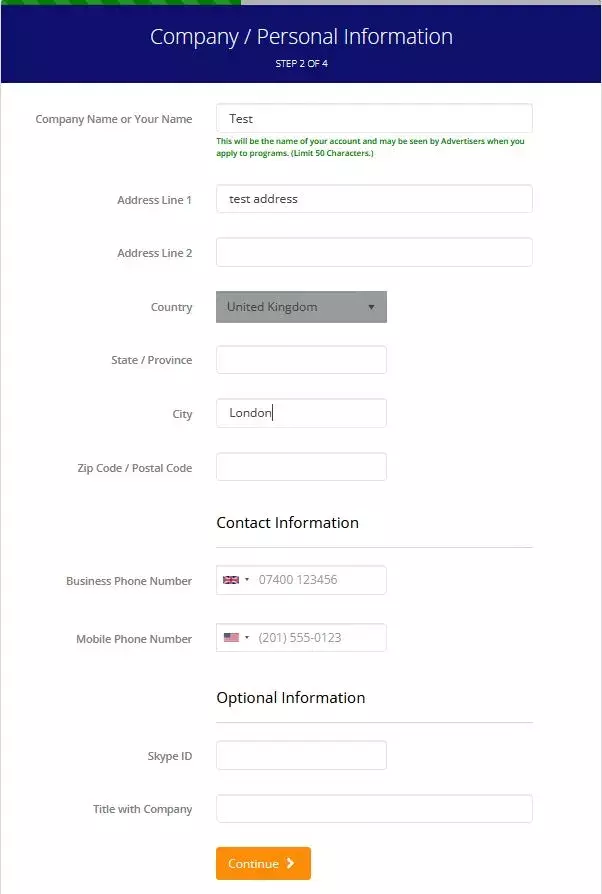
Next, submit your company name, address, country, and contact details. Optional fields include Skype ID and job title — fine to skip.
Step 3: Traffic sources
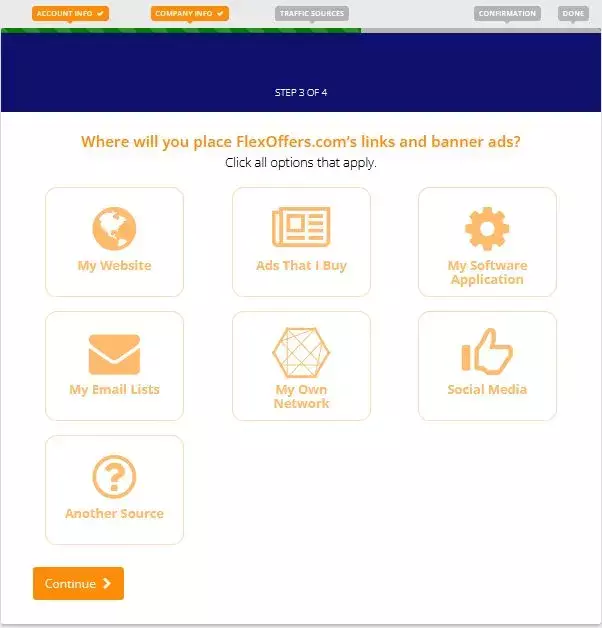
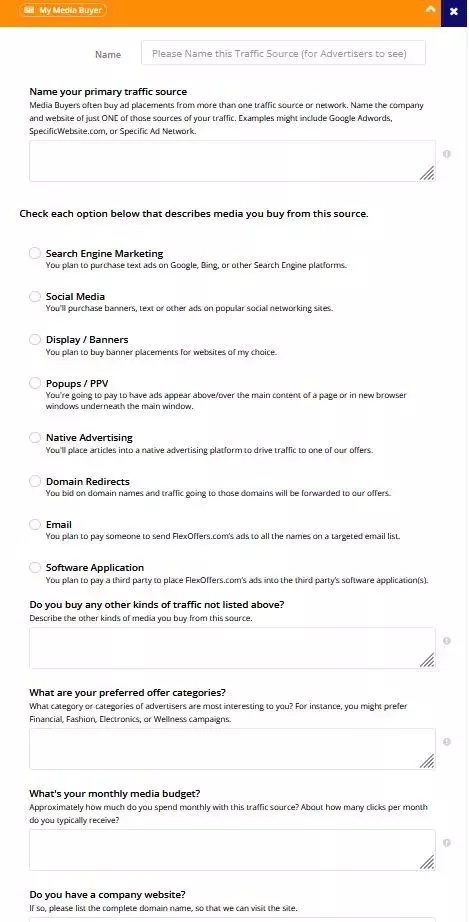
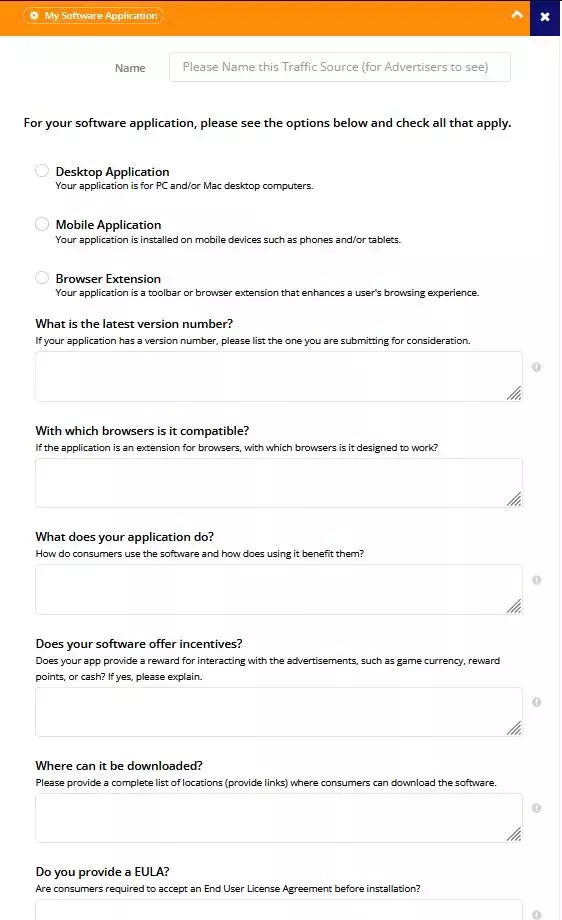
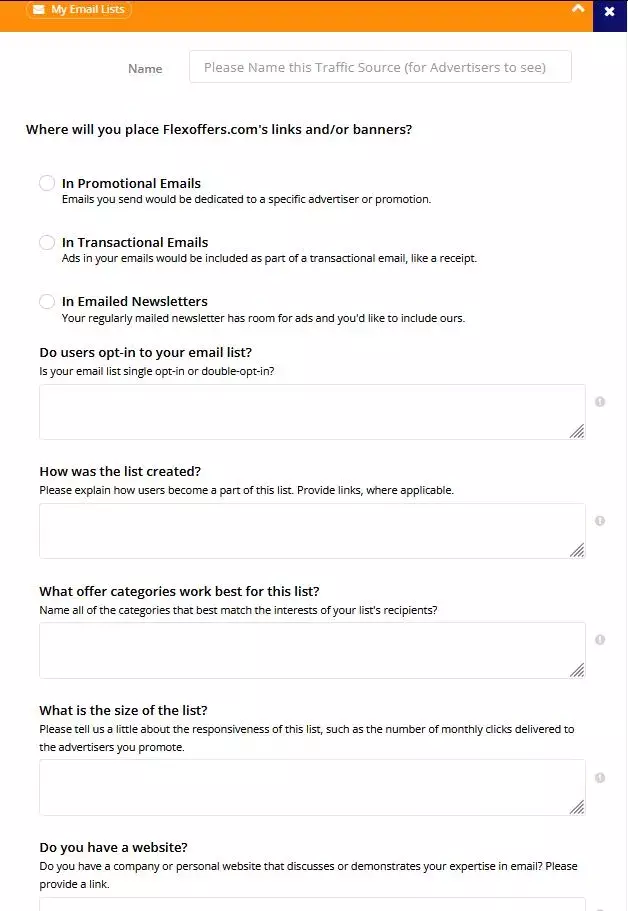
Pick how you plan to place FlexOffers links: My website, My software application, My email lists, or Social media. You can select multiple.
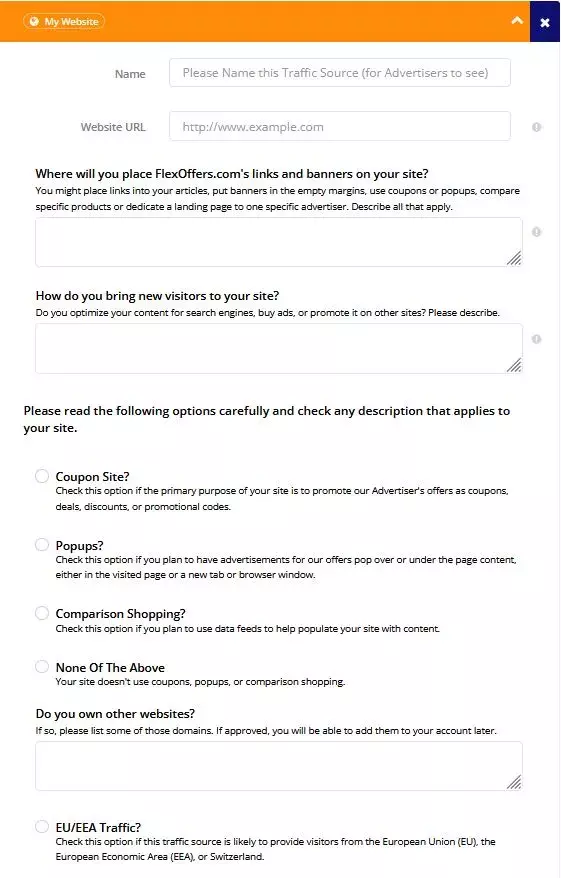
Each option opens its own form. For a website, expect questions on the URL, where links will sit, how you drive traffic, and your content category. App, email, and media-buyer forms follow the same pattern with source-specific fields.
Step 4: Verify phone and website
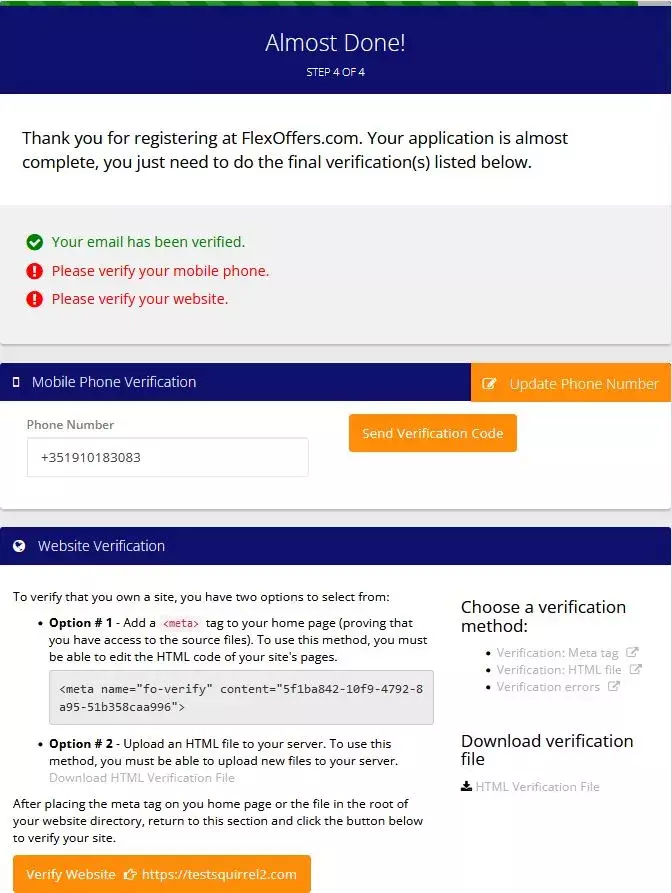
Final stage. Request an SMS code to verify your phone. For the website, pick one of two methods:
- Meta tag — paste the tag into your homepage's
<head>. - HTML file — upload the supplied file to your server root.
Click Verify Website once either is live. Approval isn't instant — FlexOffers reviews publisher applications manually, so expect a wait before you can browse offers.
After approval
Once approved, apply to individual advertisers from the dashboard — each has its own acceptance criteria. If you're running multiple networks, Squirrel lets you manage FlexOffers alongside your other partners in one place, which saves a lot of tab-switching.